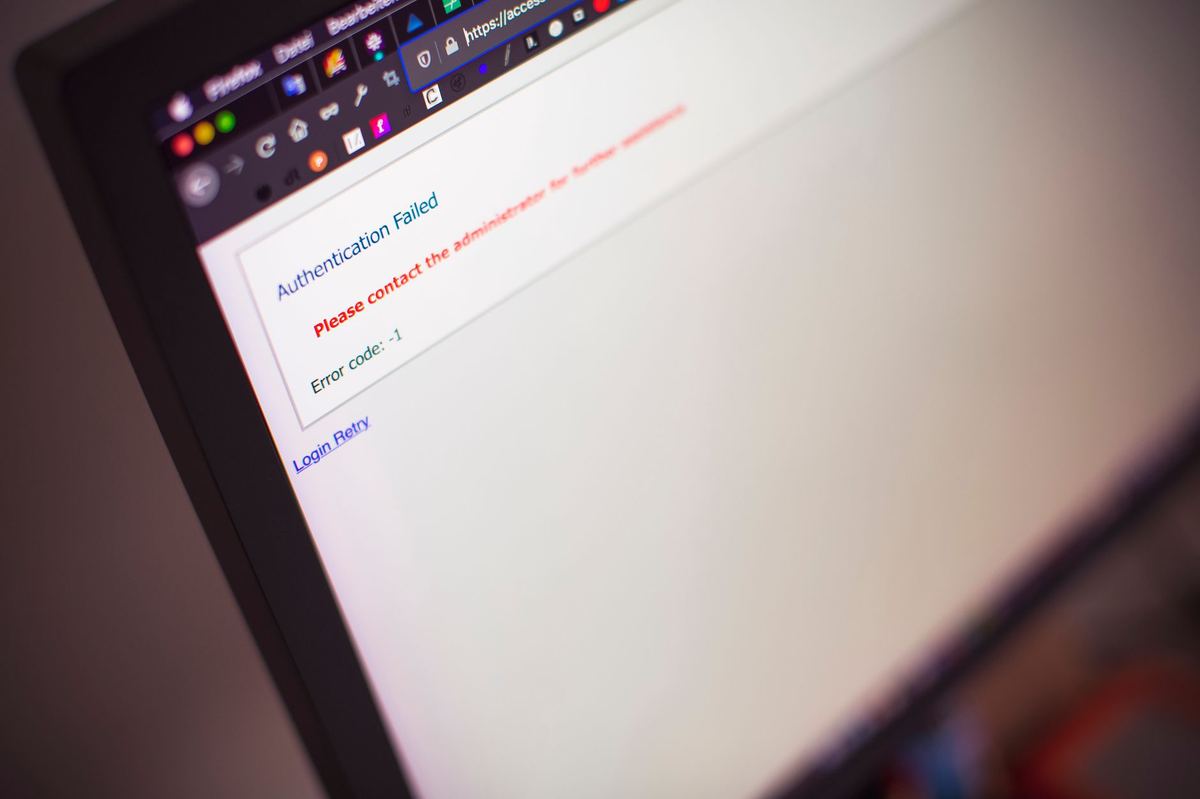
Regional Councils frequently encounter issues using Digital Signature Certificates (DSC) on the PGS India portal. These errors prevent timely signing of certificates and authorization of peer appraisals. This article provides manual steps to resolve common DSC setup and compatibility problems.
The short version
- Update Java Runtime Ensure the correct Java version and browser settings for certificate signing.
- Install Token Drivers Address token detection errors by installing specific token software.
- Verify DSC Details Confirm digital certificate information matches NCOF portal records.
- Re-register DSC Re-upload and associate the DSC on the PGS India portal if details mismatch.
Solve Java & Browser Blocks
Address pgs portal login java error and browser compatibility issues by updating software and configuring settings.
Regional Council members often face challenges with the PGS India portal due to Java Runtime Environment (JRE) or browser compatibility issues. These issues prevent the crucial step of signing PGS-Green or Organic certificates digitally. Resolving these blocks ensures smooth interaction with the portal and timely certification processes.
- Check and Update Java Version: Confirm your system runs the specific Java Runtime Environment (JRE) version recommended by the National Centre for Organic and Natural Farming (NCOF) for the PGS India portal. Older or incompatible Java versions are a common cause of the pgs portal login java error. It is advisable to uninstall all older JREs before installing the required version to avoid conflicts.
- Configure Browser Settings: Add pgsindia-ncof.gov.in to your browser's trusted sites list or security zone. Ensure that pop-up blockers are disabled specifically for the portal. For optimal performance, use an updated version of a widely supported browser such as Google Chrome, Mozilla Firefox, or Microsoft Edge. Some older portal functionalities might specifically require Internet Explorer mode in Edge.
- Run as Administrator: Launch your web browser, along with any associated Digital Signature Certificate (DSC) utility or client software, by right-clicking its icon and selecting the option to run as an administrator. This ensures the application has the necessary system permissions to access your DSC token and execute signing operations.
- Clear Browser Cache and Cookies: Regularly clear your browser's cache, temporary internet files, and cookies. Accumulation of old data can interfere with the portal's functionality, especially how it interacts with Java applets and DSC plugins, leading to unexpected errors during certificate signing.
Did you know?The National Centre for Organic and Natural Farming (NCOF) administers the Participatory Guarantee System for India (PGS-India) portal.
Fix DSC USB Token Not Detected
Resolve errors where the DSC USB token is not detected by ensuring correct driver installation and physical connection.
An error indicating that the DSC USB token is not detected is a significant barrier, preventing Regional Councils from authorising local group peer appraisals and signing documents. This issue typically stems from incorrect driver installation or physical connection problems. Proper setup is essential for your digital signature certificate (DSC) to function correctly on the PGS India portal.
- Install Correct Token Drivers: It is critical to install the specific drivers and client software provided by your Digital Signature Certificate issuing authority (e.g., e-Mudhra, Sify, Capricorn, nCode). These drivers enable your operating system to recognise and communicate with the DSC USB token. Without them, the system cannot detect the token, leading to the dsc token not found pgs error. Ensure you download the drivers for your specific operating system (Windows, macOS, Linux).
- Check USB Port and Connection: Ensure the DSC token is securely plugged into a functional Universal Serial Bus (USB) port directly on your computer. Avoid using USB hubs or extension cables, as they can sometimes interfere with signal integrity and power supply. If one port does not work, try another available port.
- Verify Token Indicator Light: Most DSC USB tokens have a small LED indicator light. A steady or blinking light usually indicates that the token is receiving power and is active. If the light is off, the token might not be correctly plugged in, or there could be a hardware issue. Consult your token provider if the light never activates.
- Restart System and Utility: After installing or updating token drivers, it is often necessary to restart your computer. This allows the system to properly load the new drivers. Also, ensure any DSC utility software runs in the background. Some browsers may also require a restart to recognise new plugins or extensions.
Register & Verify Your Digital Signature
Address verification failures by ensuring your digital signature certificate details match national PGS portal database records.
Mismatched digital certificate details are a frequent cause of verification failures on the national PGS portal database. This prevents Regional Councils from completing vital tasks like regional council certificate signing for PGS-Green or Organic certificates. Accurate registration and verification are paramount for compliance and smooth operations.
- Confirm DSC Details Accuracy: Carefully verify that the name, organisation, designation, and other identifying details on your Digital Signature Certificate (DSC) exactly match the information registered on your profile within the National Centre for Organic and Natural Farming (NCOF) PGS India portal. Even minor discrepancies in spelling or format can lead to verification failures during Pgs india portal dsc login or signing attempts.
- Re-register DSC on Portal: If you identify any mismatches, or if your DSC has been renewed or re-issued, you must re-register or update your DSC information on the PGS India portal. This process typically involves navigating to your profile settings, selecting the DSC registration option, and then uploading the new or corrected certificate. Follow the portal's specific instructions for Pgs india portal dsc registration.
- Check DSC Validity and Expiry: Always ensure that your DSC is currently valid and has not expired. An expired certificate will be rejected by the portal during any signing attempt. Plan for DSC renewal well in advance of its expiry date to avoid service interruptions.
- Monitor Online Registration Status: After completing the DSC registration or update process, check the DSC status online within the PGS India portal. Confirm that its status displays as registered, active, or validated under your user profile. If the status remains pending or shows an error, re-check previous steps. Manually checking each DSC registration against portal records can take about 5 minutes per certificate. For a Regional Council overseeing 50 local groups, each potentially requiring multiple certificates signed, this manual review can consume many hours per cycle.
For initial setup guidance for Regional Councils, you may refer to our article: PGS RC Portal Setup: Regional Council Registration Guide.
Questions People Ask
How to check DSC status online?
You can check the status of your Digital Signature Certificate (DSC) within the PGS India portal after registration. The portal typically displays whether your DSC is active, registered, or if there are any pending issues. Additionally, you can use the utility software provided by your DSC issuing authority to check its validity and expiry date online.
Check yourself
Tap an answer to see whether you are right, and why.
Which action can resolve a 'DSC USB Token Not Detected' error?
- Clearing browser cache
- Installing the specific drivers for the DSC token
- Running the browser in incognito mode
The 'DSC USB Token Not Detected' error is typically resolved by installing the correct drivers provided by the DSC issuing authority, allowing the system to recognise the hardware.
What is a common cause for verification failures with a Digital Signature Certificate on the PGS India portal?
- Using a mobile browser
- Mismatched personal details between the DSC and the NCOF portal profile
- Logging in during non-working hours
Verification failures often occur if the details on your Digital Signature Certificate (DSC) do not exactly match the information registered for your profile on the National Centre for Organic and Natural Farming (NCOF) portal.
Remember these things
- Ensure Java and browser settings are compatible with the PGS India portal.
- Install correct DSC token drivers to resolve detection issues.
- Verify and re-register your DSC on the portal if details are mismatched.
Resolving Digital Signature Certificate errors on the PGS India portal ensures Regional Councils can efficiently sign certificates and authorise appraisals. Following these steps helps maintain compliance and smooth operations for organic farming certification under schemes like Paramparagat Krishi Vikas Yojana (PKVY) and Mission Organic Value Chain Development for North Eastern Region (MOVCDNER). KrushiFlow streamlines the management of digital signature certificates and their integration with the PGS India portal.